

What is LobeHub
LobeHub is an open-source AI chat platform based on LobeChat. You can treat it as a web chat app where you choose the model provider yourself. AIOHub runs a hosted LobeHub instance at chat.aiohub.org, connected to AIOHub model routes so you do not need to deploy LobeHub yourself. Conversation history is managed by LobeHub and the browser experience. AIOHub still receives model API requests through the configured provider URLs and records usage logs for billing and troubleshooting.How is it different from the ChatGPT official site?
| Area | ChatGPT official site | AIOHub + LobeHub |
|---|---|---|
| Model range | Mainly OpenAI models | Use GPT, Claude, Gemini, and open-source models through AIOHub |
| Billing | Usually monthly subscription plus limited usage-based options | AIOHub balance-based usage billing; subscription plans are also supported |
| Data storage | Conversation data is stored on OpenAI servers | Conversation history is stored locally in the browser. Model API requests still pass through AIOHub for billing and logs |
| Plugins and extensions | Supports GPTs and limited plugins | Open-source plugin ecosystem with knowledge base, TTS, agents, and more |
| Access | Some regions may need special network access | Direct access without special network access |
Who is it for?
- You want to use GPT, Claude, Gemini, and open-source model families from one chat interface.
- You do not want a monthly subscription and prefer usage-based billing with flexible cost control.
- You want a ready-to-use web chat UI instead of writing API code.
Steps
Create an AIOHub account
Open the console, sign up, and log in.
Add funds
AI model calls consume account balance. After logging in, open wallet management to add funds. See Add funds for payment and billing details.
Create an API key
An API key is the credential LobeHub uses to access AI models. AIOHub uses this key to identify your account and deduct usage from your balance or plan. You can view and manage created keys in the console at any time.Go to the console Token page and select New token: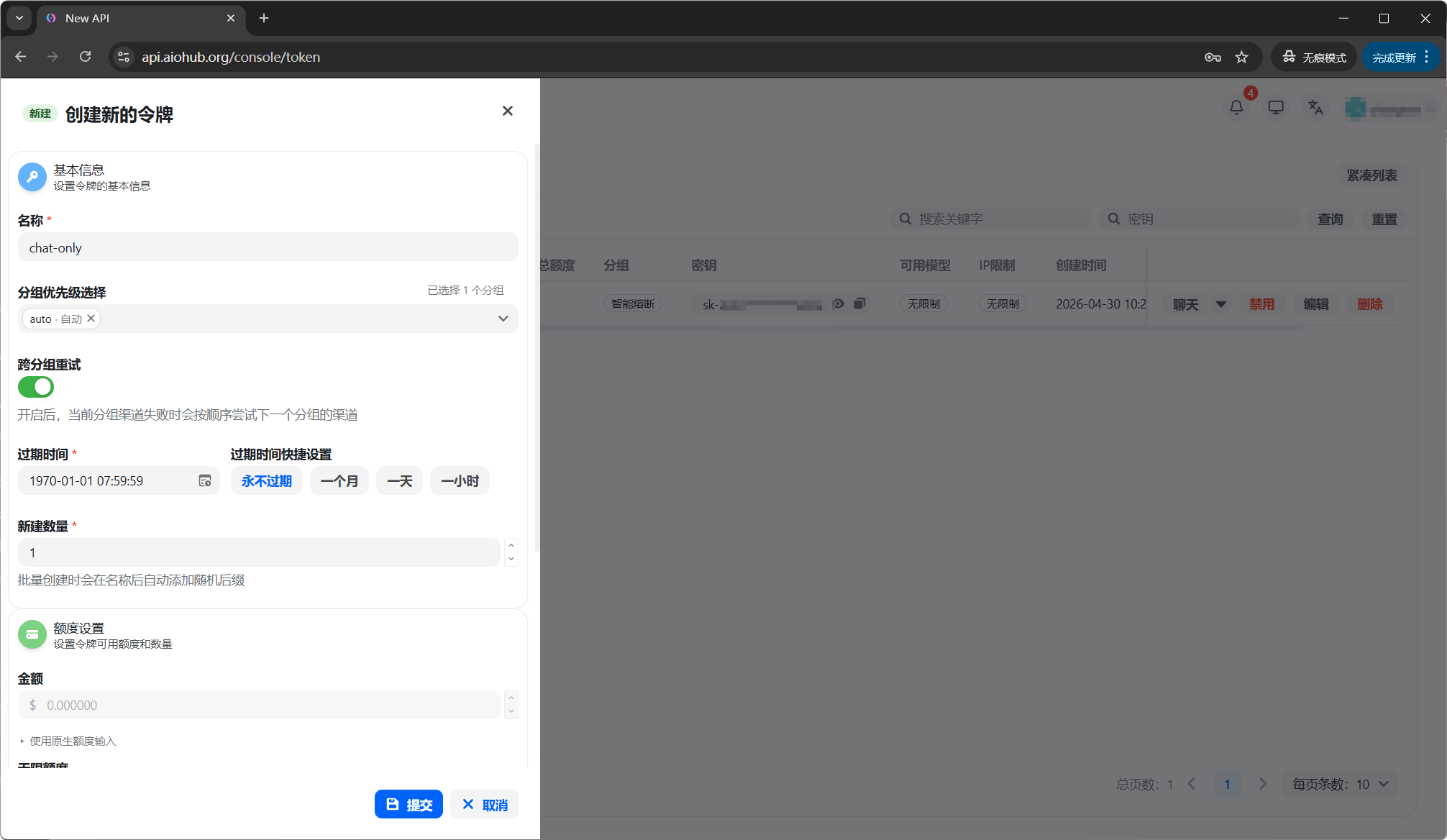
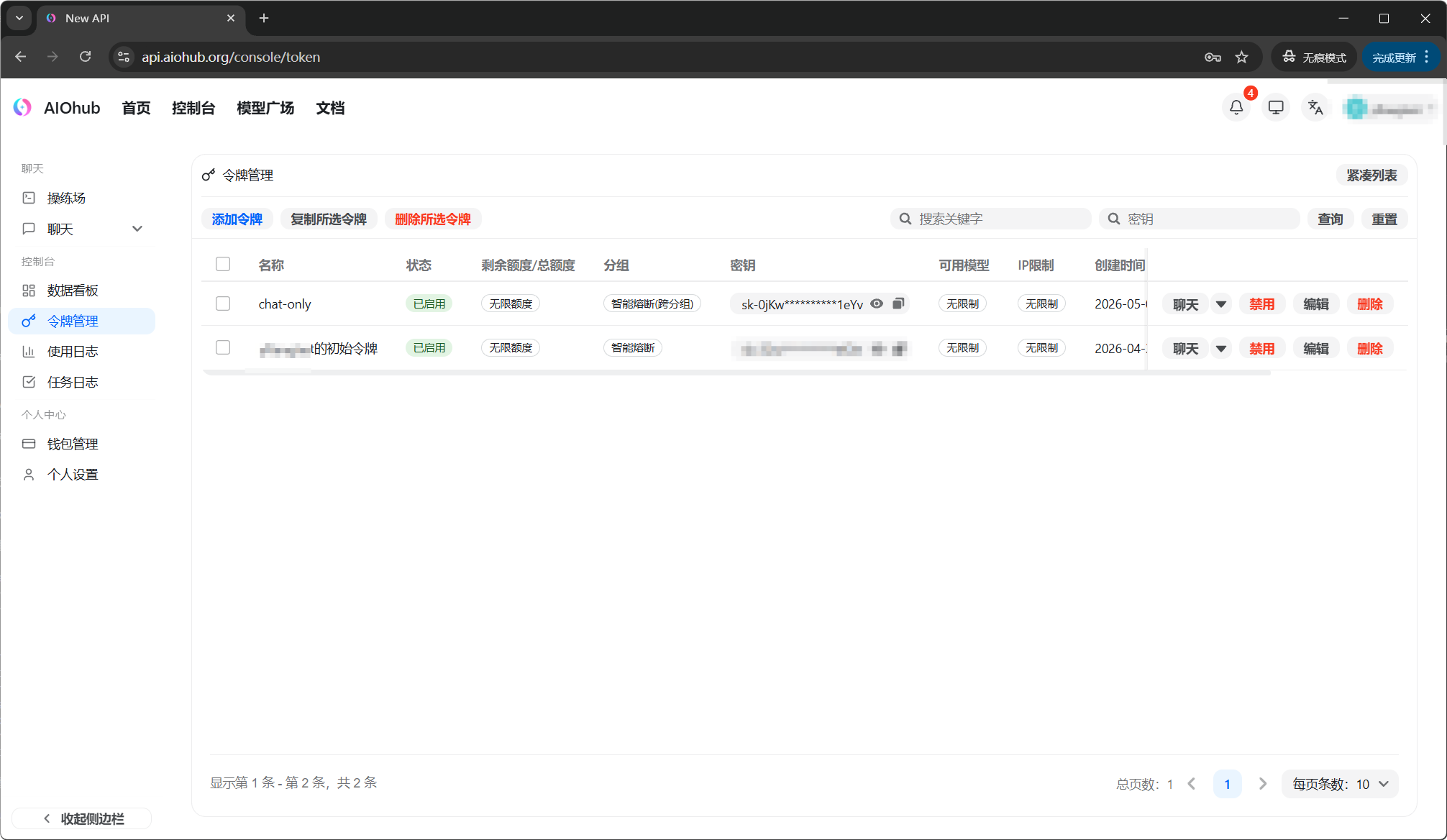
- Name: use any label that helps you identify the key.
- Group: use
autofor quick validation. For long-term use, choose specific groups based on Groups. Recommended examples areclaude-kirofor Claude models andcodexfor OpenAI-compatible models.
sk- value.Sign up and log in to LobeHub
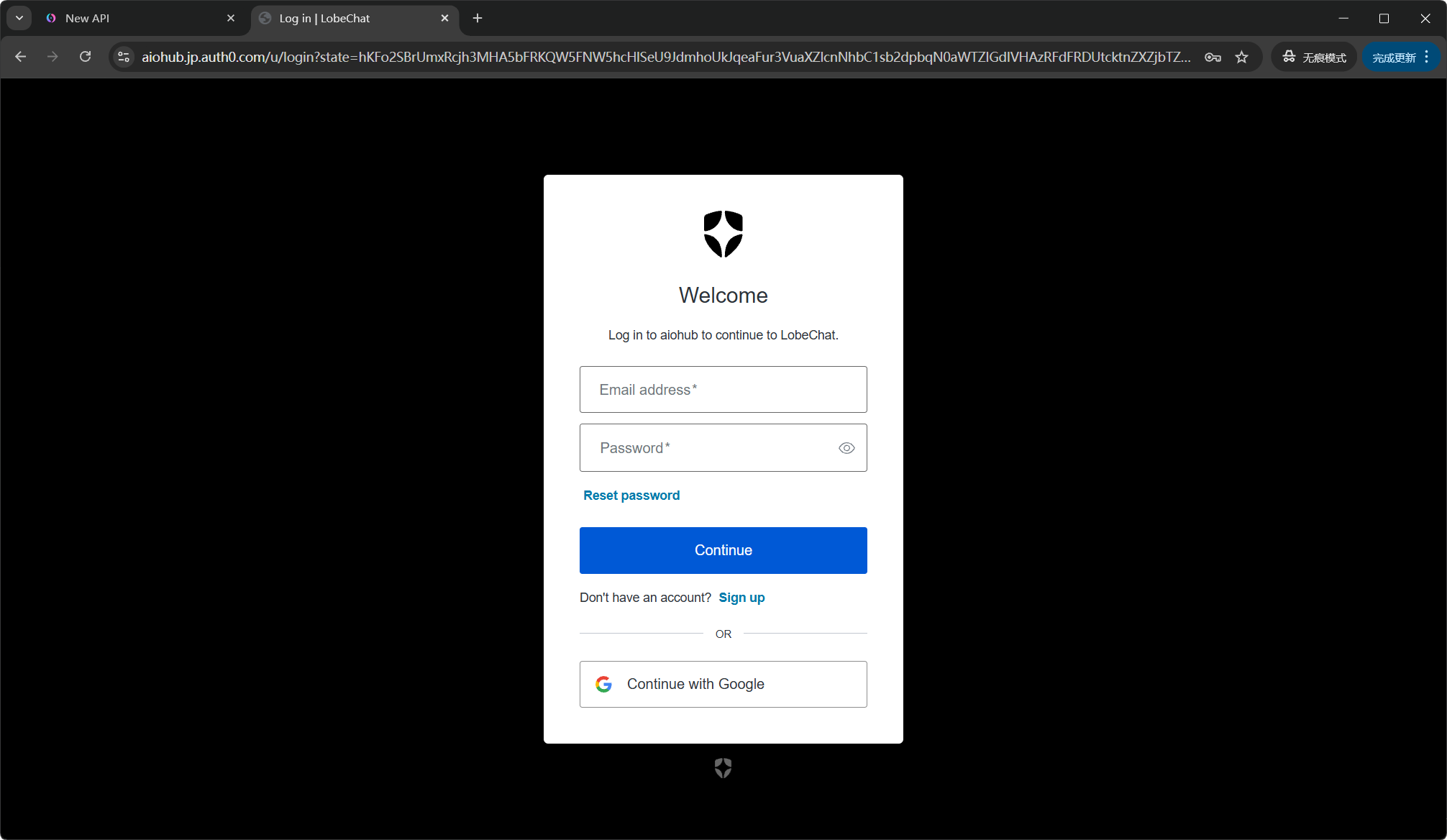
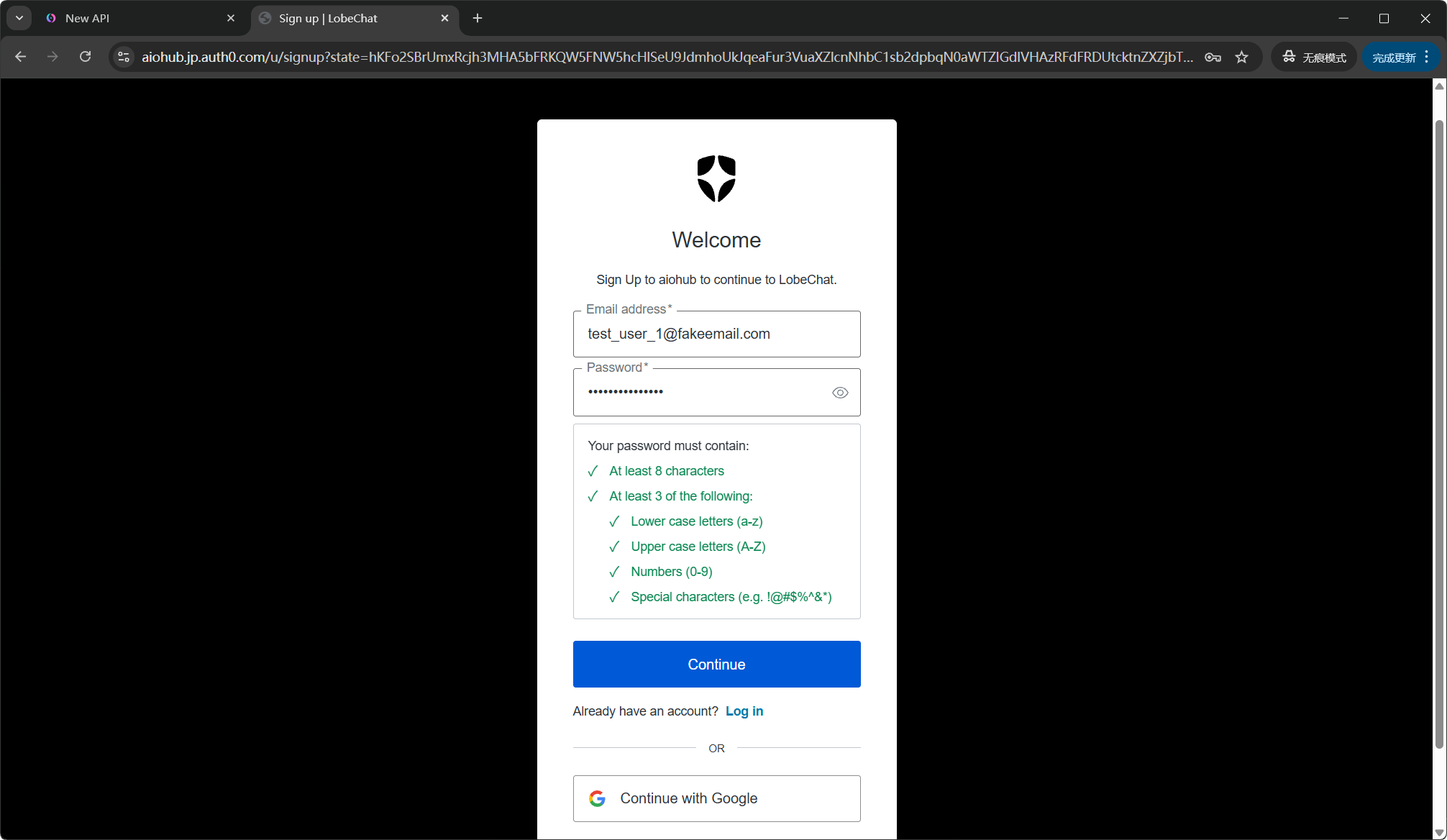
Go to https://chat.aiohub.org. Your LobeHub account is separate from your AIOHub account, so you need to register once.Click Continue with Auth0 on the page: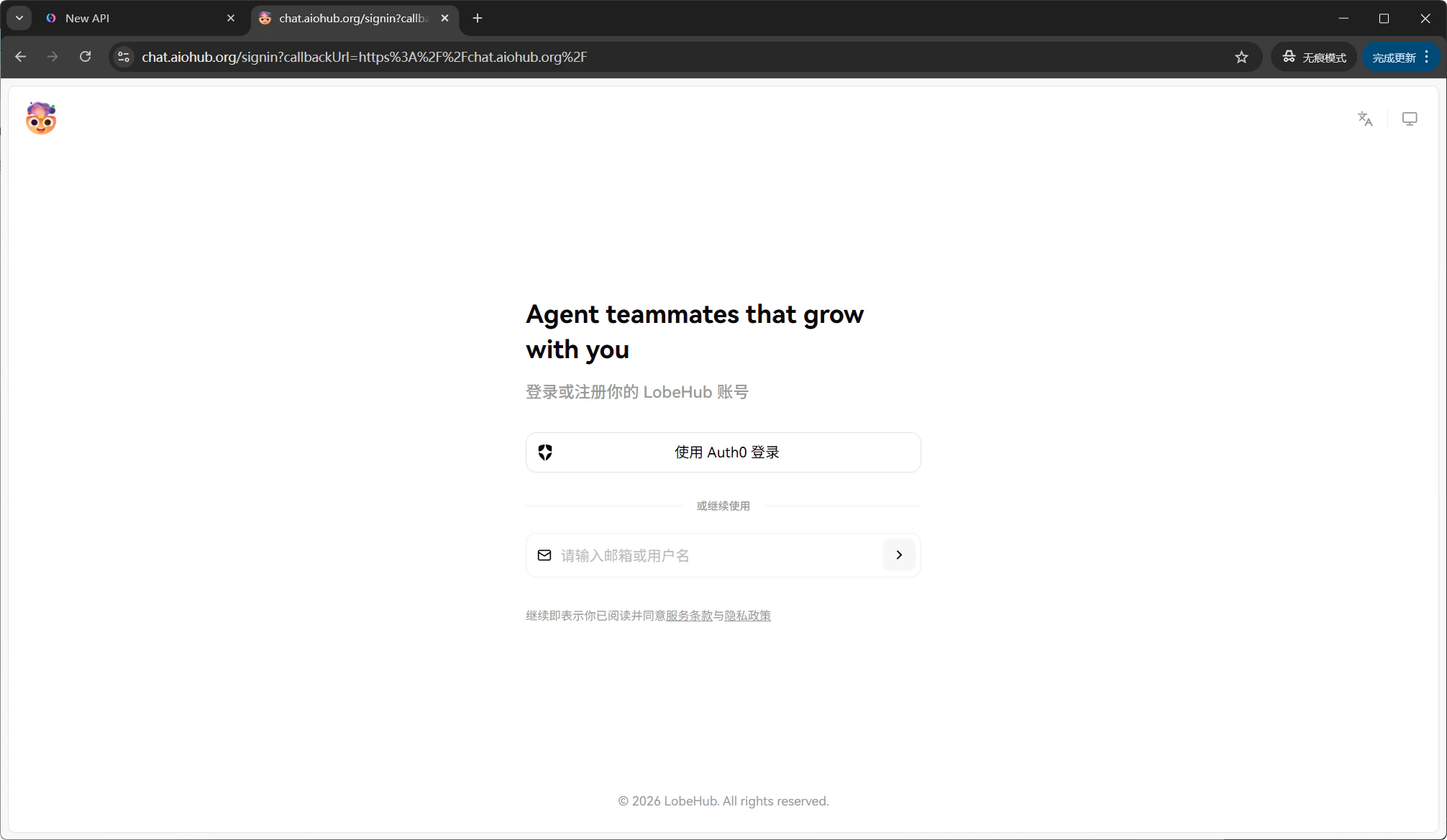
Configure AI providers
After logging in, enter the LobeHub main screen. Click the avatar in the top-left corner, then choose Settings.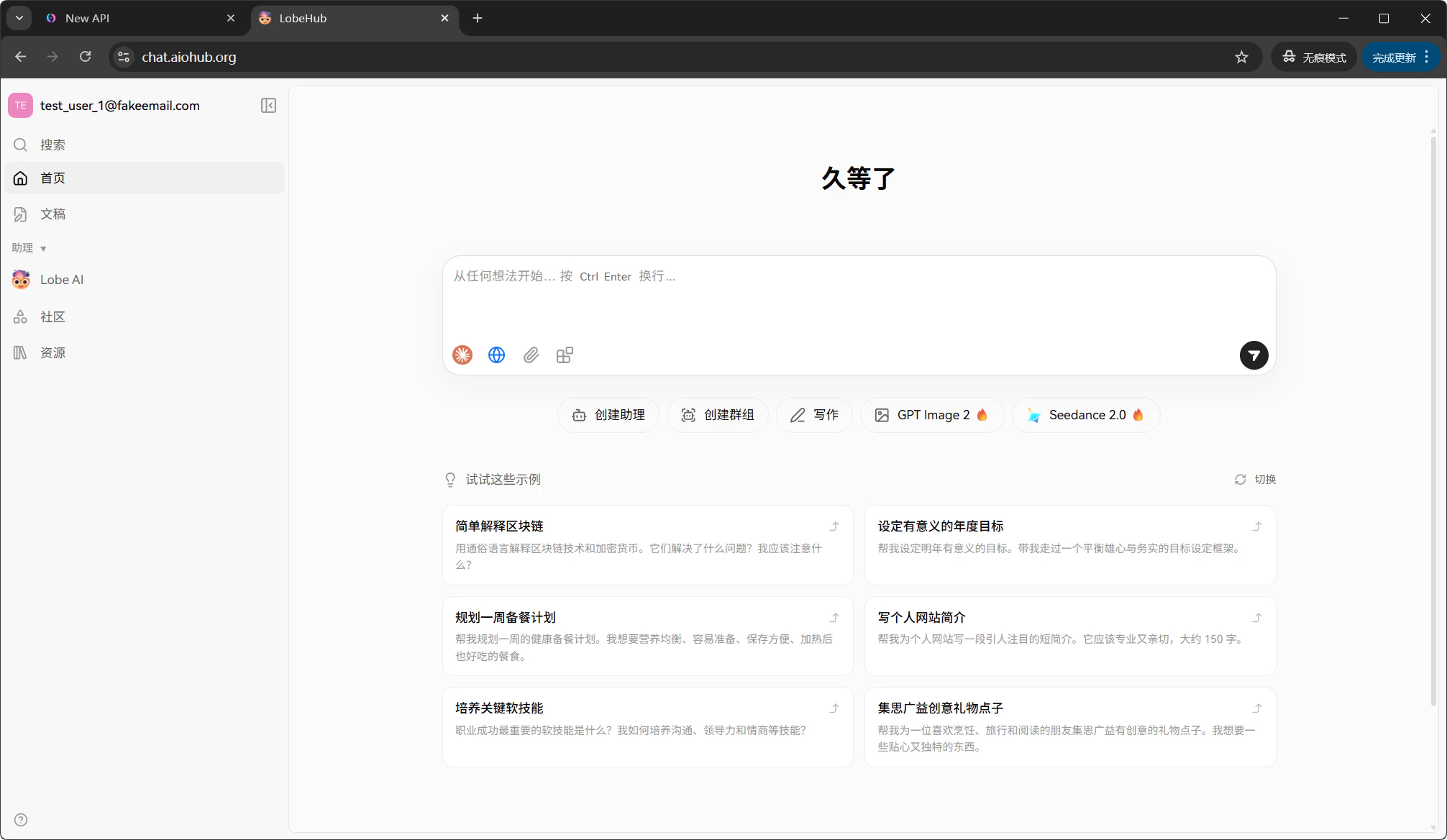
Start with OpenAI: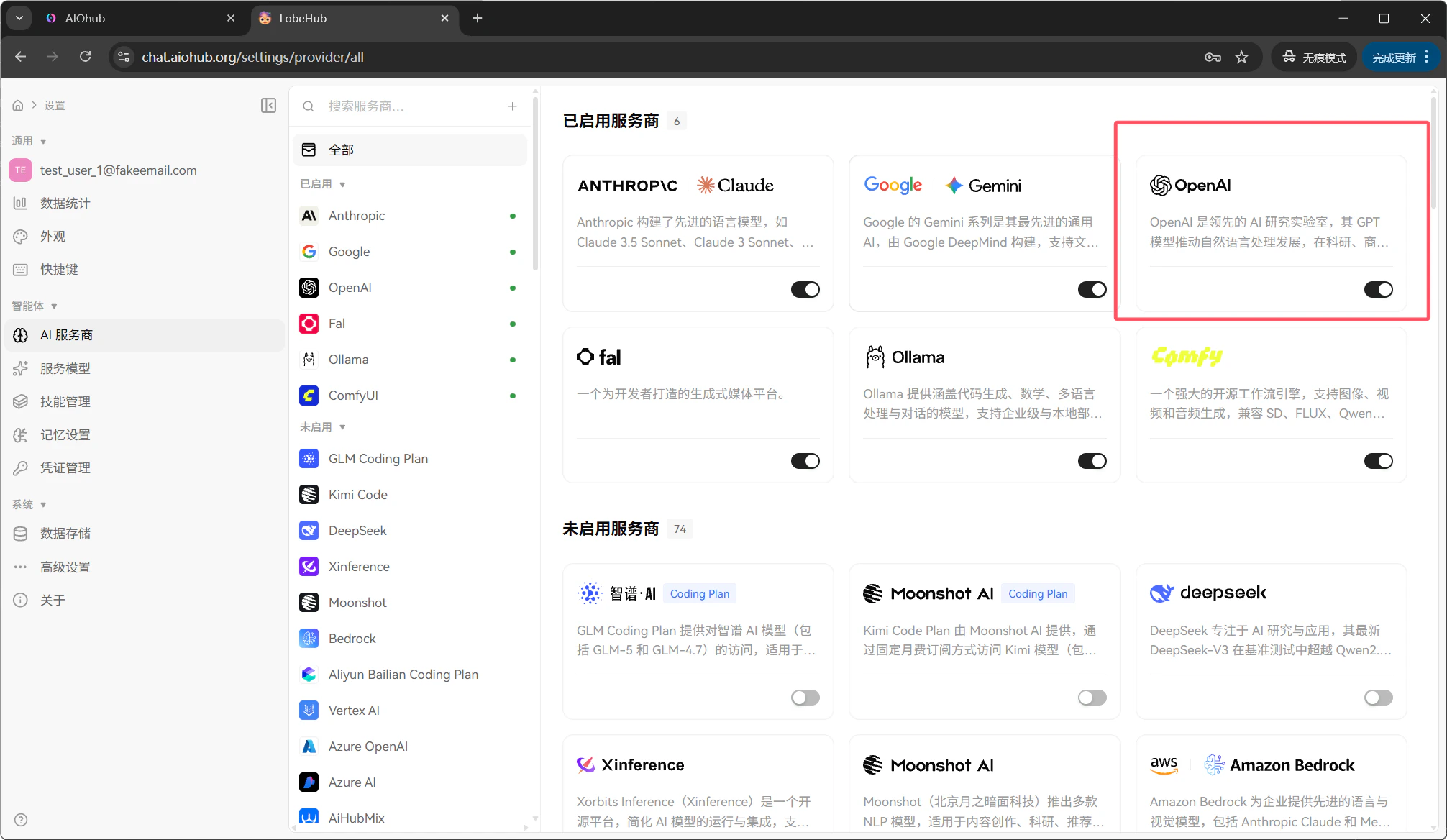
| Provider | What it is | Example models |
|---|---|---|
| OpenAI | Provider for GPT-family models | gpt-4o, gpt-5.4, o4-mini, gpt-5.5 |
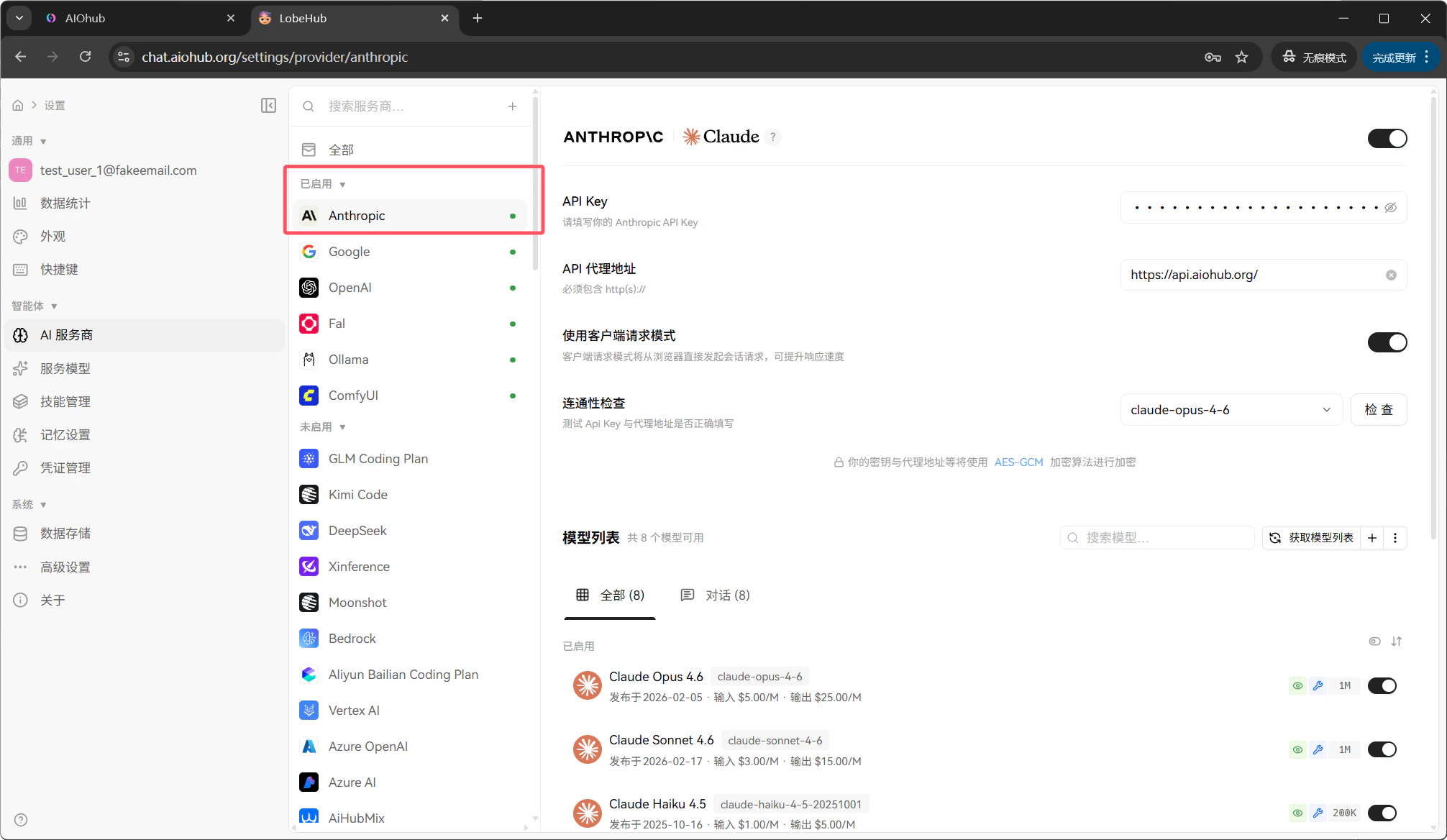
| Anthropic | Provider for Claude-family models | claude-sonnet-4, claude-opus-4, claude-haiku-4 |
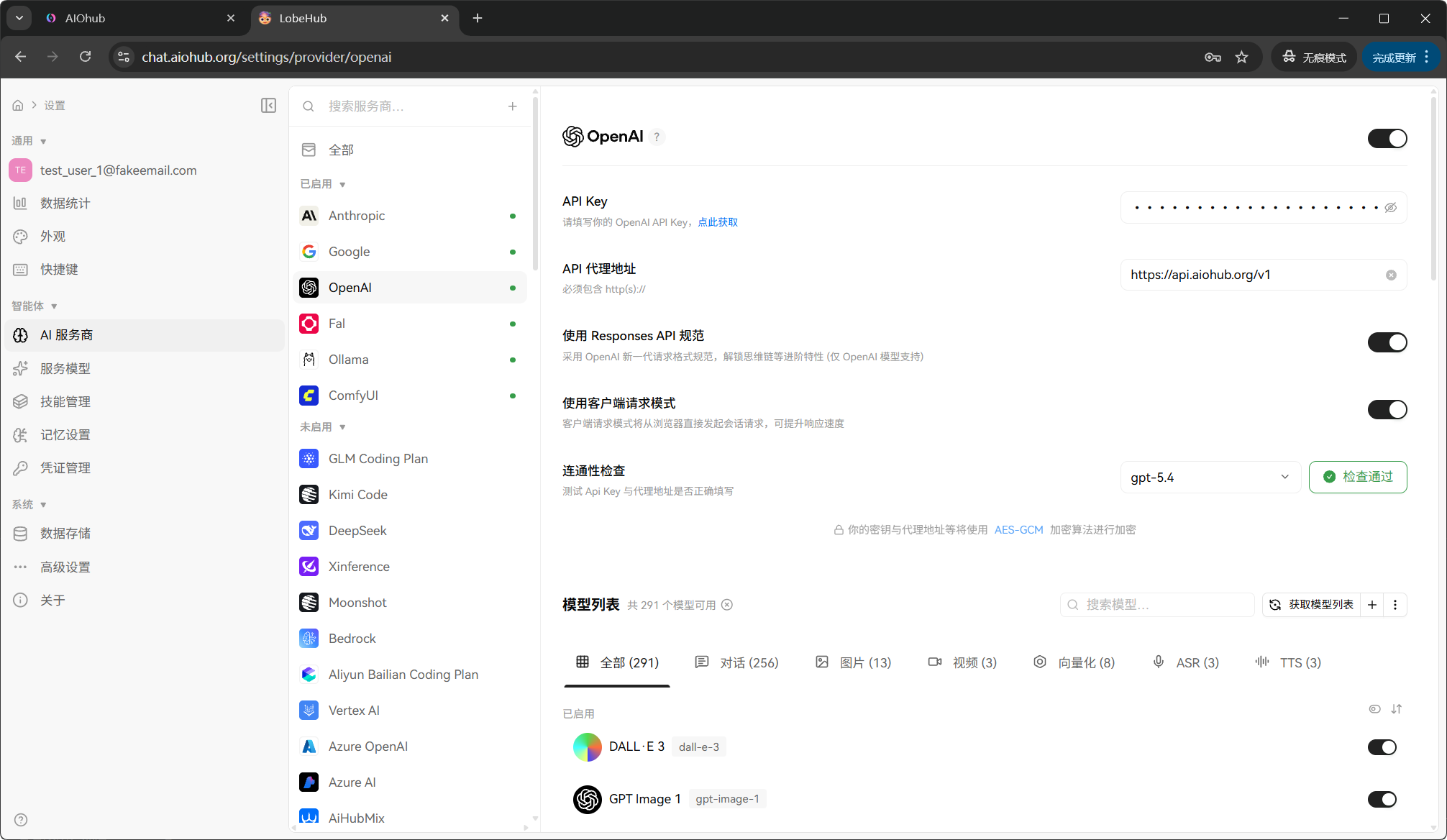
gpt-5.4, and click Check to verify the connection:| Setting | Value |
|---|---|
| API Key | sk-your-api-key |
| API Proxy URL | https://api.aiohub.org/v1 |
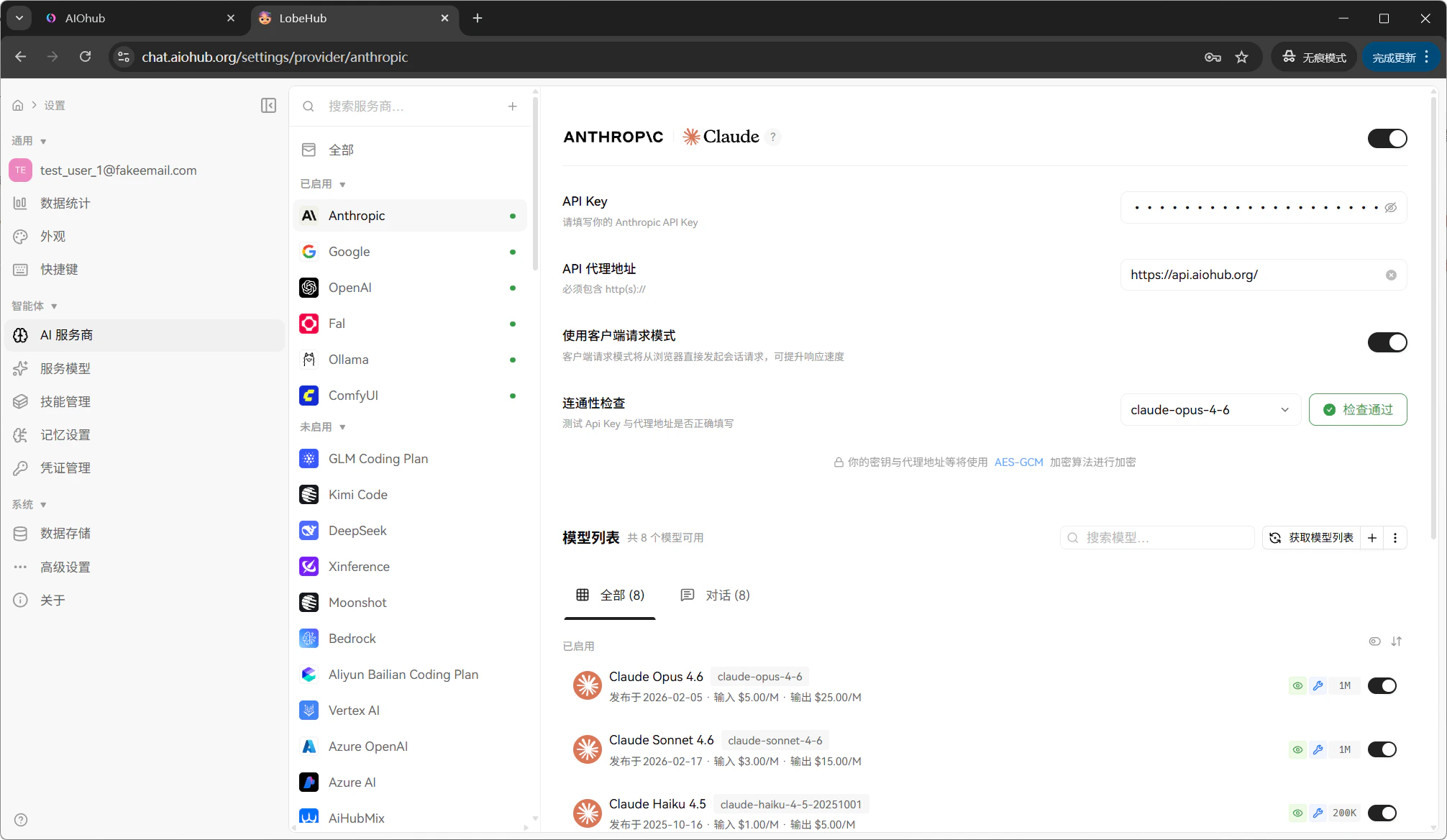
/v1:| Setting | Value |
|---|---|
| API Key | sk-your-api-key (the same key as OpenAI) |
| API Proxy URL | https://api.aiohub.org |
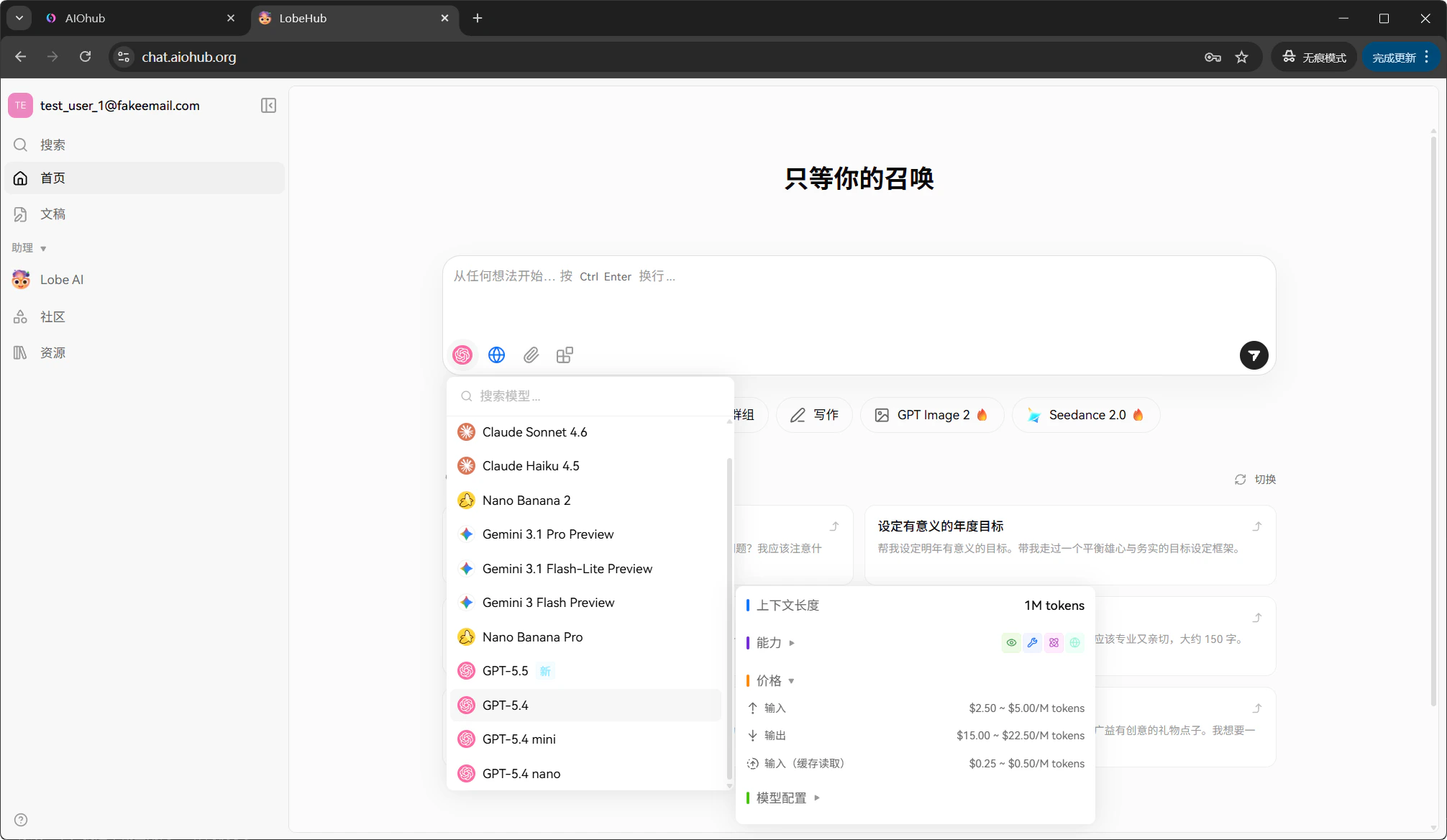
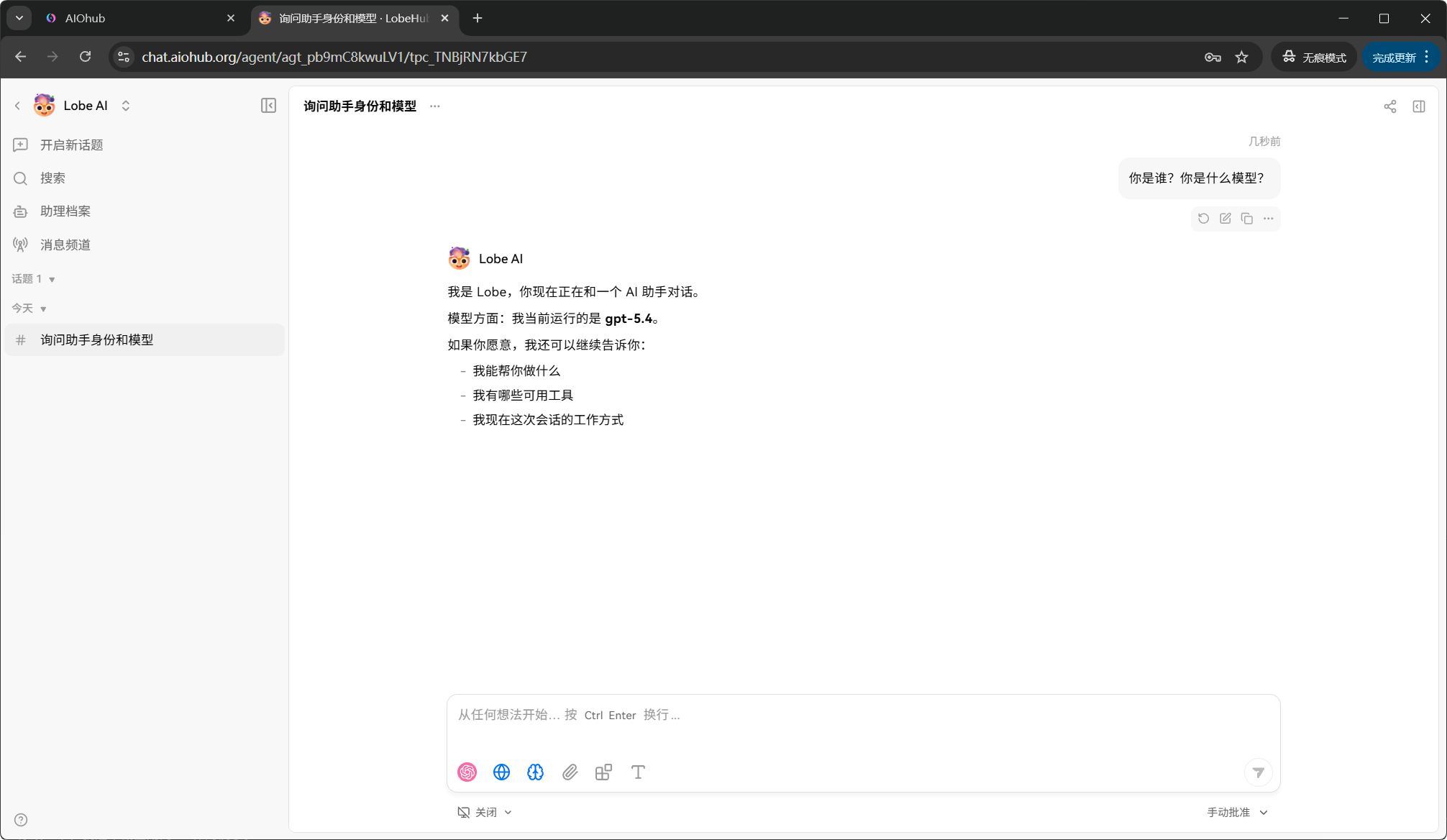
View usage
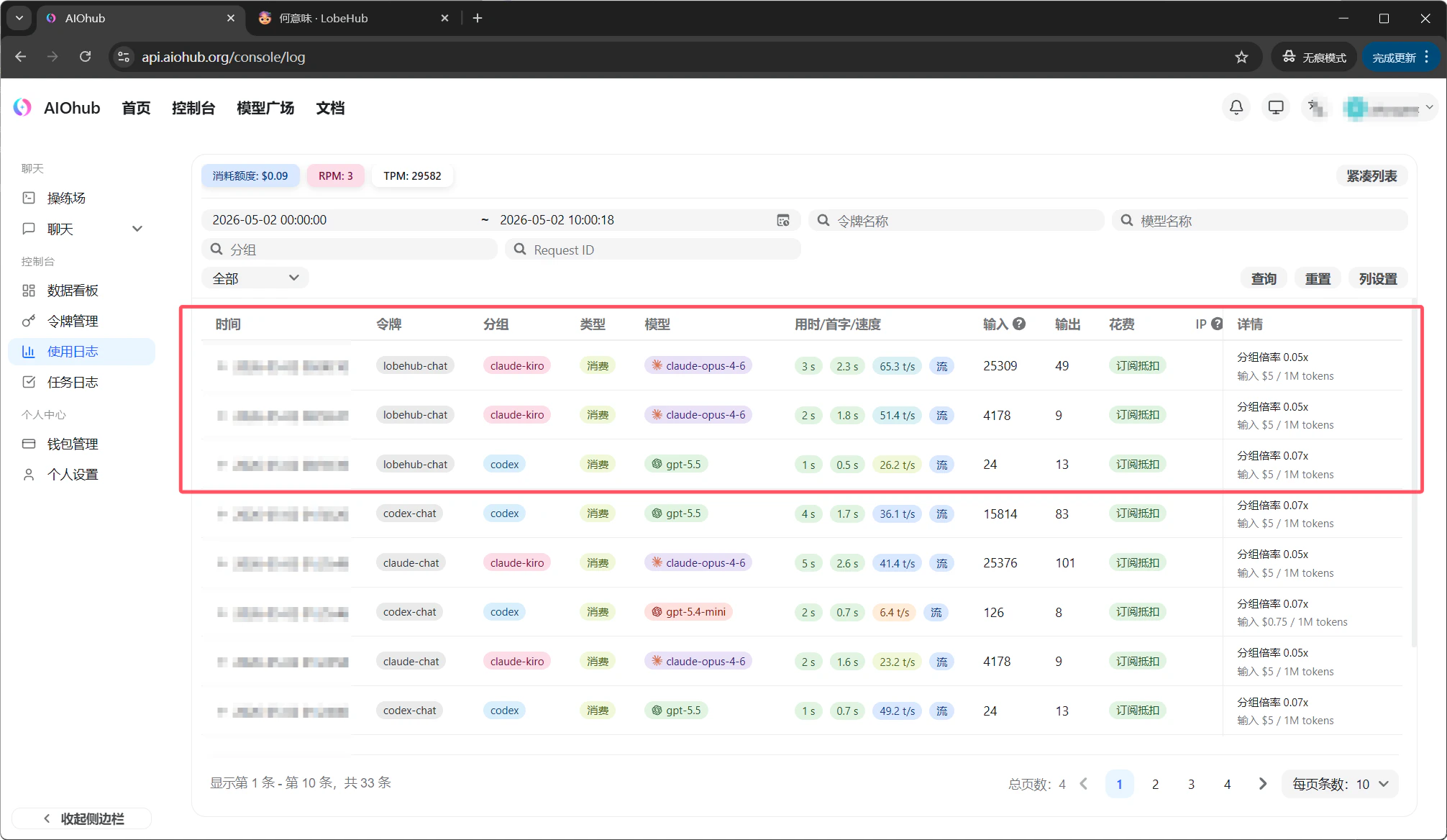
After sending a message, open the AIOHub console Logs page to view the calls created by that conversation: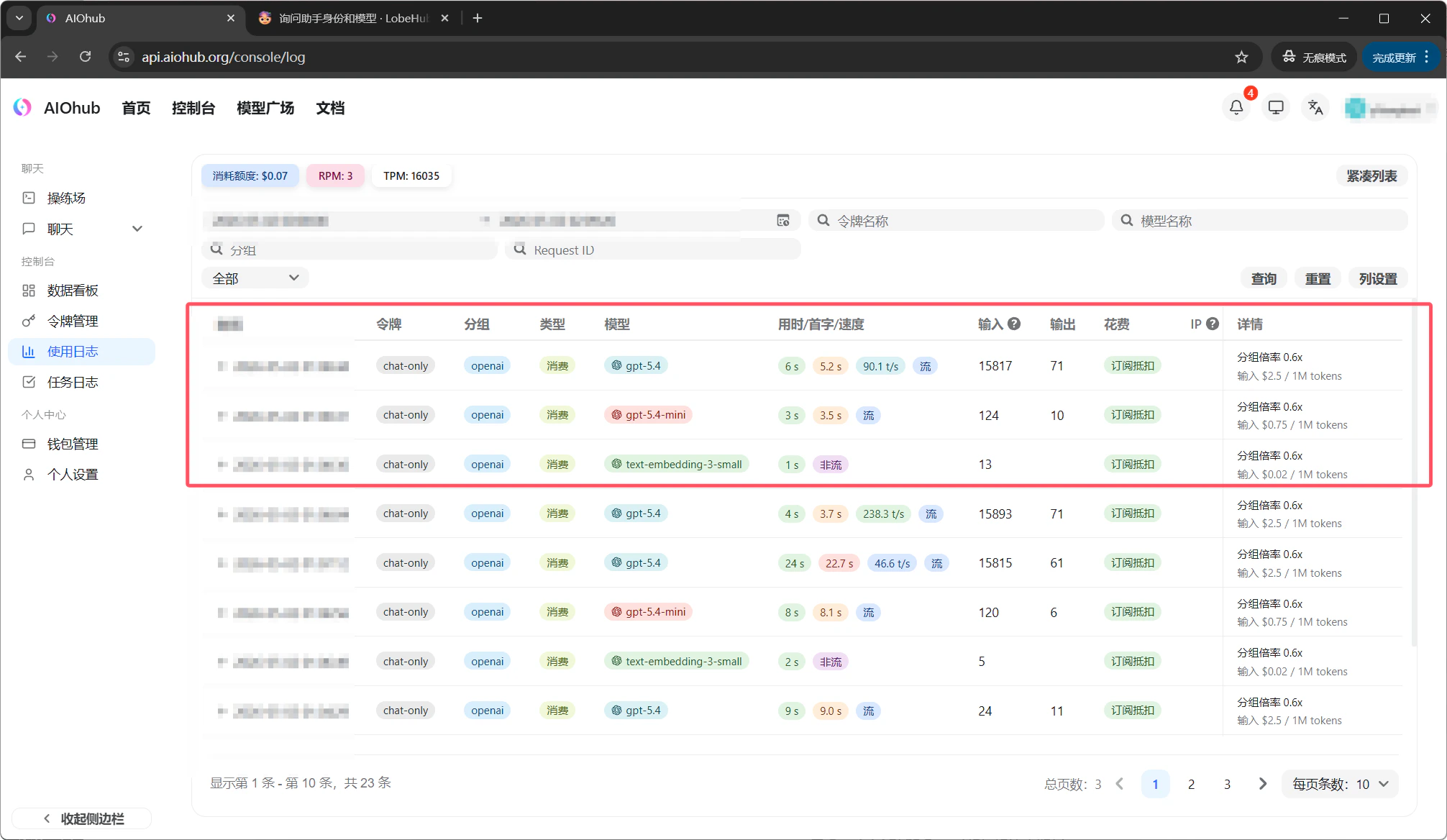
text-embedding-3-small, gpt-5.4-mini, and gpt-5.4. This is normal. LobeHub can call auxiliary models in the background:
- text-embedding-3-small: converts messages into vectors for knowledge base retrieval and context matching.
- gpt-5.4-mini: generates conversation titles and handles other helper tasks.
- gpt-5.4: the main chat model you selected, which answers your message.
Use lower-cost groups
The guide above usesauto for quick setup. If you want lower cost, create an API key with more economical groups and replace the key in LobeHub.
Create an economical API key
Go back to the AIOHub console Token page. Create a new key and select both 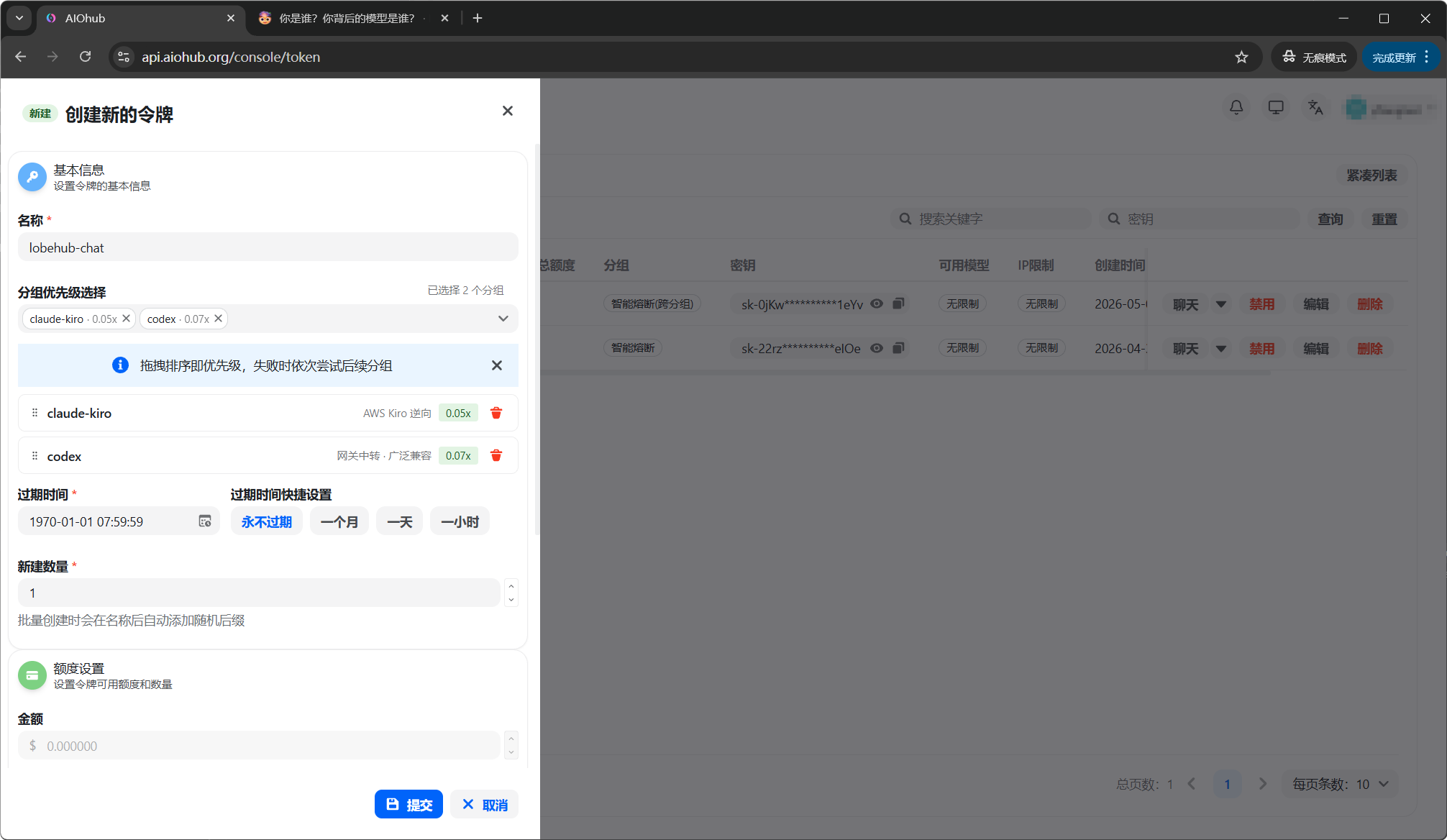
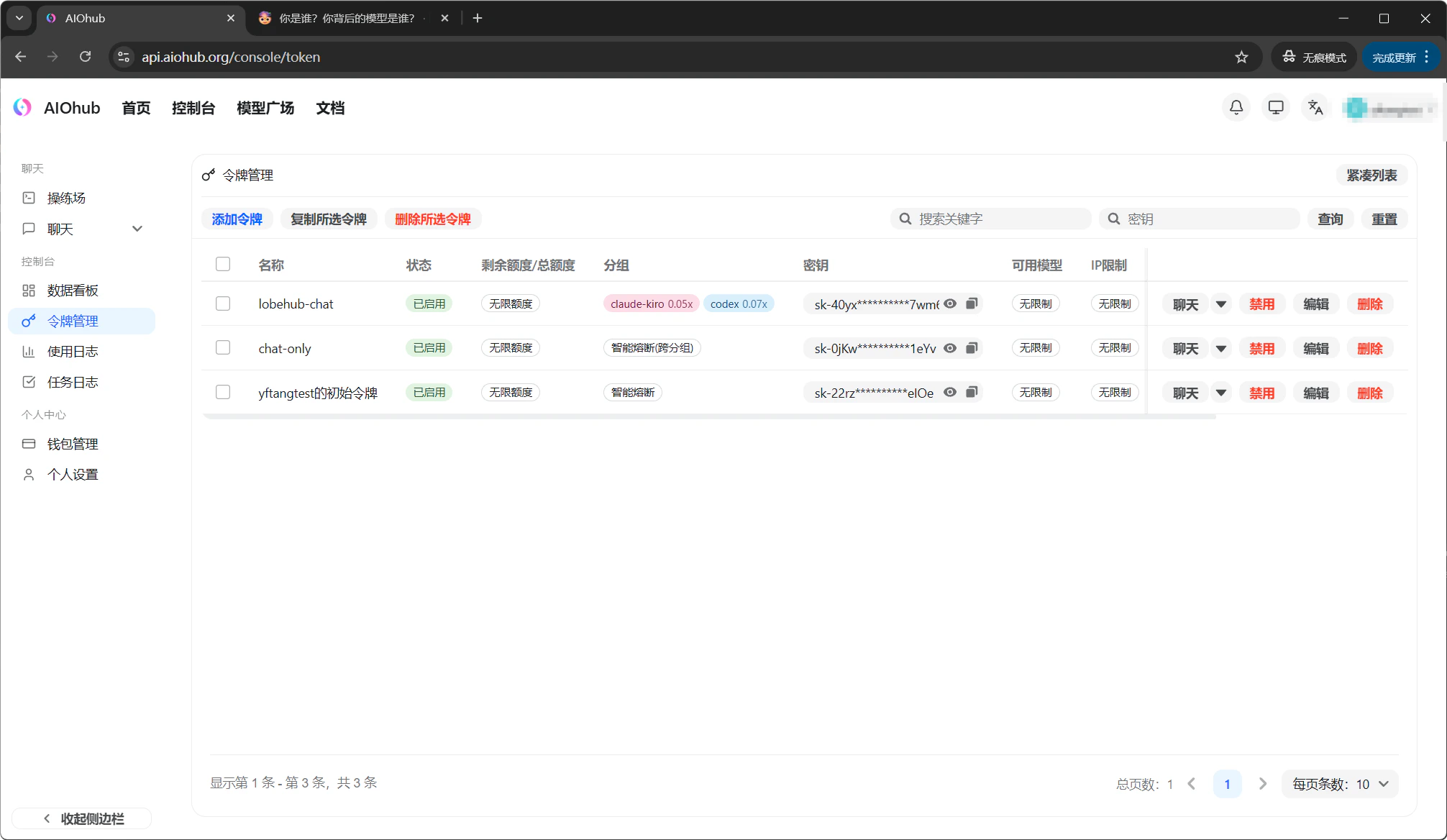
codex for OpenAI-compatible routes and claude-kiro for Claude routes. Check Groups for current group ratios.Replace the API key in LobeHub
Go back to Settings -> AI provider in LobeHub. Replace the OpenAI API Key with the new economical key, then verify it: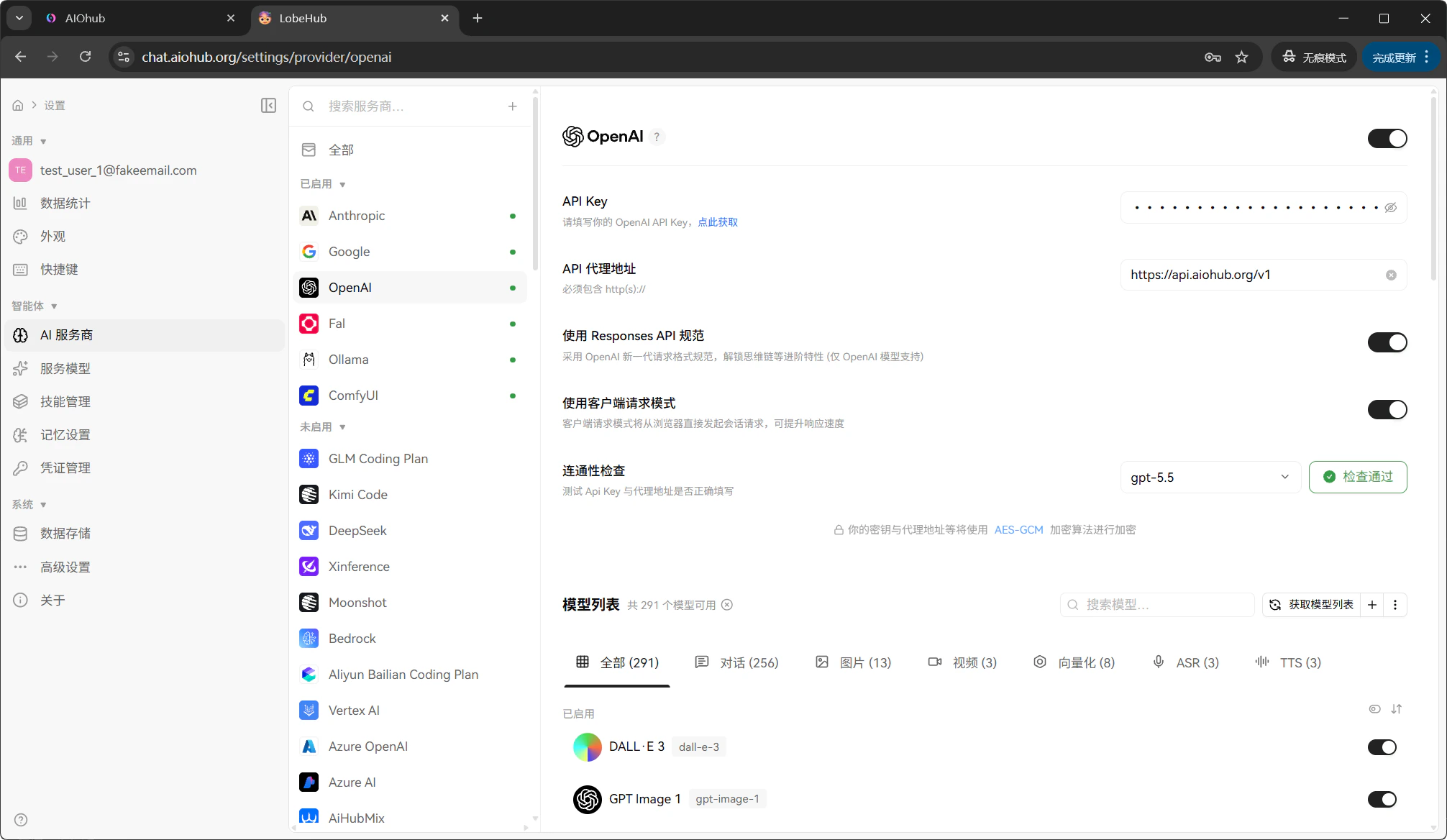
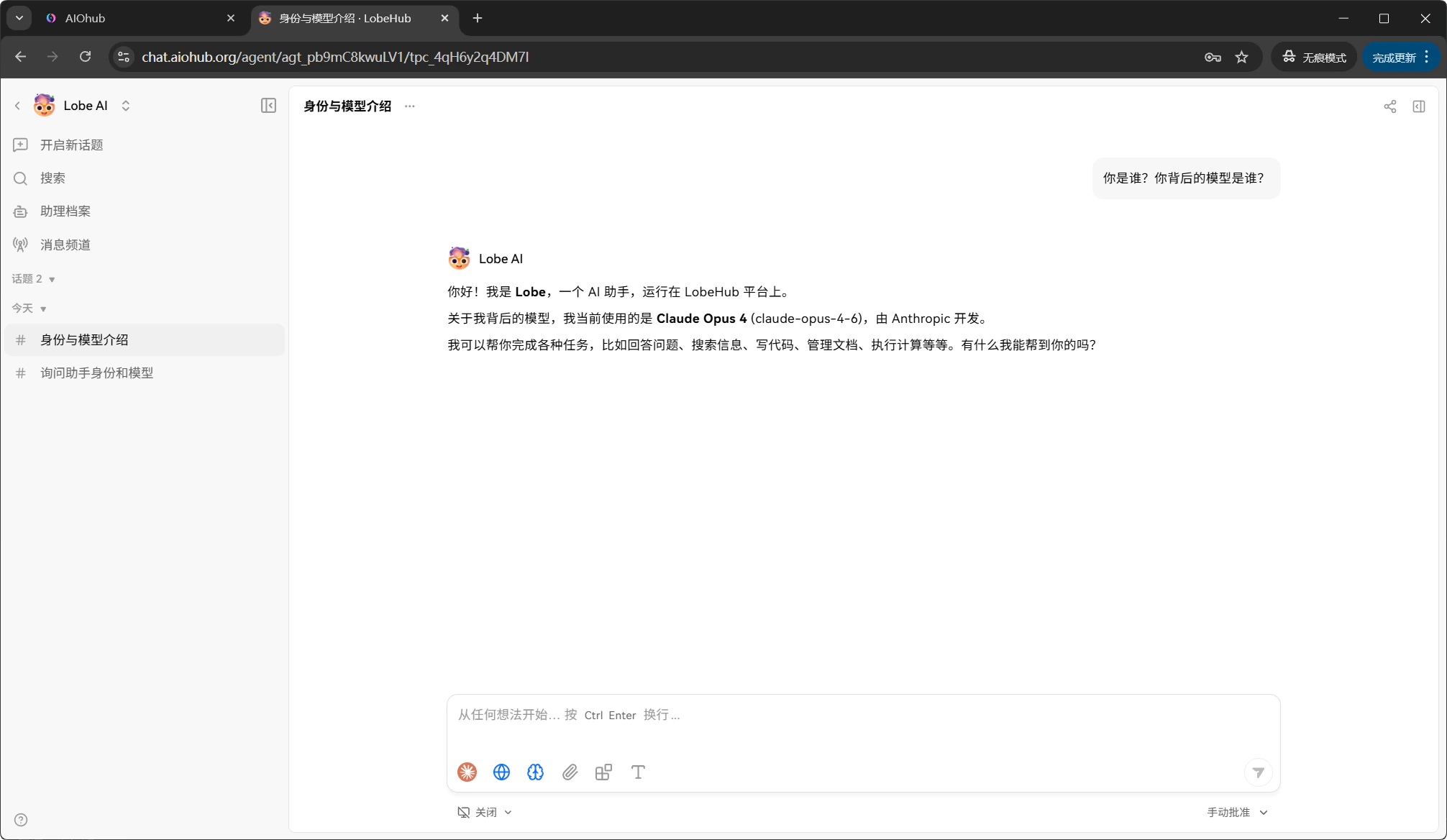
Understand auxiliary models
You may notice that one message creates multiple usage log entries. This happens because LobeHub can call helper models in addition to the main chat model:| Helper feature | Default model | Purpose |
|---|---|---|
| Topic naming | gpt-5.4-mini | Generates a title for new conversations so they are easier to identify in the conversation list |
| Translation helper | gpt-5.4-mini | Translates UI content or messages when needed |
| Knowledge base embedding | text-embedding-3-small | Converts messages into vectors for knowledge base retrieval and semantic matching |
Open LobeHub and start chatting
Go to the web chat interface.
FAQ
Connection test fails
Connection test fails
Make sure the API Proxy URL is
https://api.aiohub.org/v1 for OpenAI, and that the API Key starts with sk- and is valid.Model list is empty or missing a model
Model list is empty or missing a model
Manually type the model name in the model list to add it. If it still does not work, check that the group assigned to your API key includes the model in the console. For example, GPT models need the
openai or auto group.Which group should I pick?
Which group should I pick?
For normal chat, use
auto for smart routing or openai for GPT and OpenAI-compatible models. See Groups.Conversation errors or empty responses
Conversation errors or empty responses
Check that your console balance is sufficient and the API key has not expired. You can also check the Logs page in the console for specific error details.